01
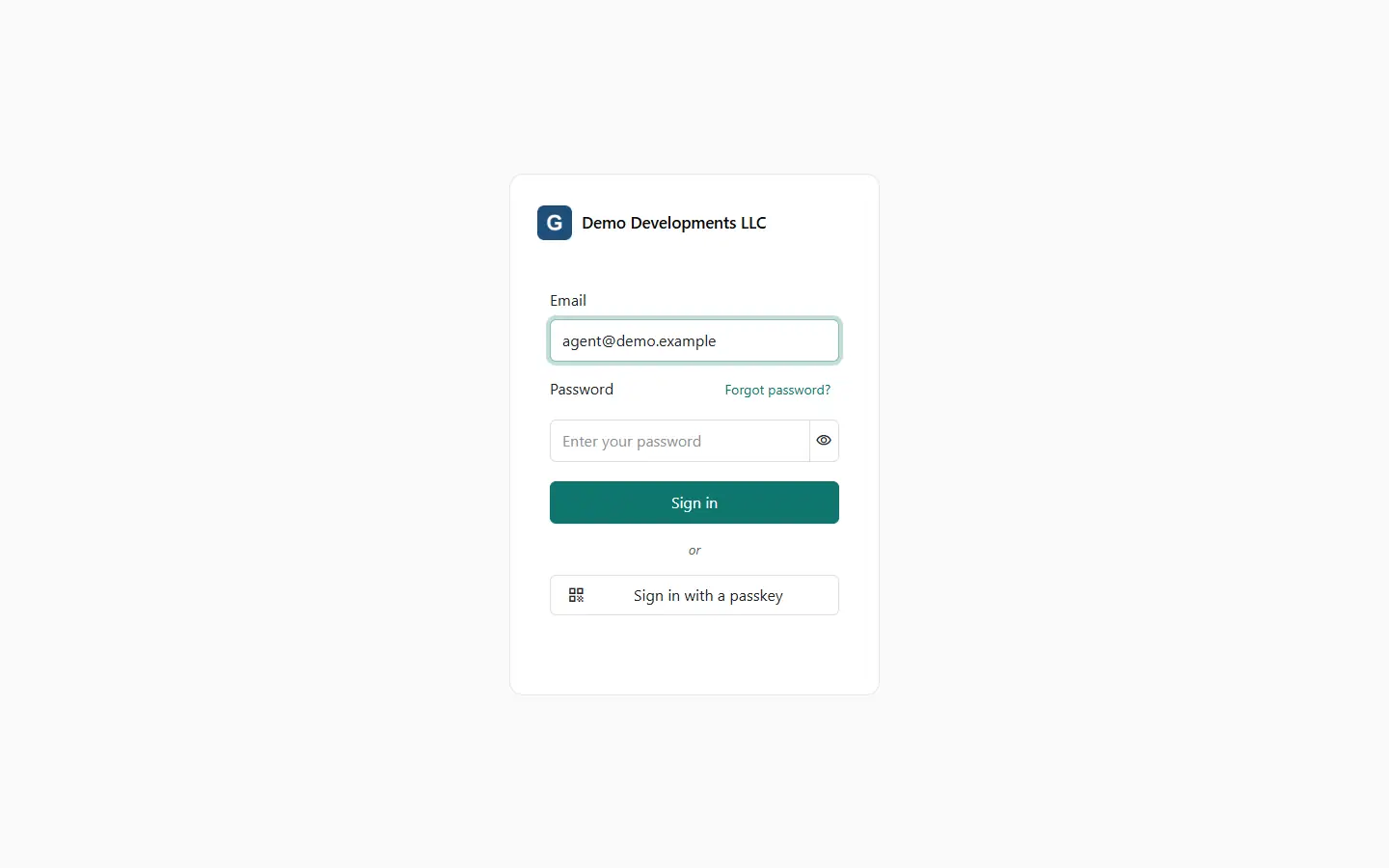
Noor opens the company sign-in page, with the developer's name and colours.
Screen storyboard
Release 1 screens
The real screens of Release 1, as each person in a developer's office uses them, from the first lead to the signed booking form, the SPA, the invoices and the collections. Each role shows its journeys first, then every screen on its menu. Then come the pages buyers and brokers open from a link, and the platform console Grout uses to run every developer.
Click a screen to enlarge it. ← → move from one screen to the next; Esc closes. All people, units and amounts are sample data.
Chapter
8 journeys, 24 steps, each shown under the role that does it.
SUD 12
Chapter
15 journeys, 44 steps, each shown under the role that does it.
SUD 11
Noor Al Amiri
SUD 4.1, 5.1
Noor opens the company sign-in page, with the developer's name and colours.
After sign-in, her home lists what needs her attention.
Grout Settings opens on the first set-up checklist: company details, accounts, users and the first project.
The brand section sets the colours and logo every screen and document uses.
SUD 5.3 (roles)
The users list shows everyone who can sign in to the company.
Each user gets one tick per business role: sales agent, Sales Manager, Finance and so on.
SUD 5.5, 11.1, 5.8
The approval matrix sets who approves what: quotations, SPAs, late fee waivers, price lists.
Stage gates list what a deal needs before it can move on.
The audit trail records every settings change and approval, with the user and time.
SUD 12.5
Categories lists each kind of document with the roles that see it and whether it needs an expiry date.
A category sets the file types and size allowed, the expiry warning and reminder days, and who sees the files.
SUD 11.2
The approval matrix lists one line per process.
A line opens in the flow designer: the steps in order, who approves each, and when a step applies (here, the amount of a late fee waiver).
A step can be changed: the approver role, and the condition, such as the amount above which the GM decides.
Every page on this role's menu, with a record where the page lists them.
List and a record
List and a record. The same screen as for Tenant administrator, shown here with that role's records.
Screen
Screen
Screen
Screen. The same screen as for Tenant administrator, shown here with that role's records.
Screen
List and a record
Screen
List and a record
Screen
Screen. The same screen as for Tenant administrator, shown here with that role's records.
Screen
Screen
Screen
Screen. The same screen as for Tenant administrator, shown here with that role's records.
Screen
Screen
Screen. The same screen as for Tenant administrator, shown here with that role's records.
List and a record
Screen
List and a record
List and a record
Screen
Screen
Screen
List and a record
Screen
Screen
Screen
Screen
List and a record
Aisha Rahman
SUD 2.2 (home per role)
Aisha signs in on her company's sign-in page.
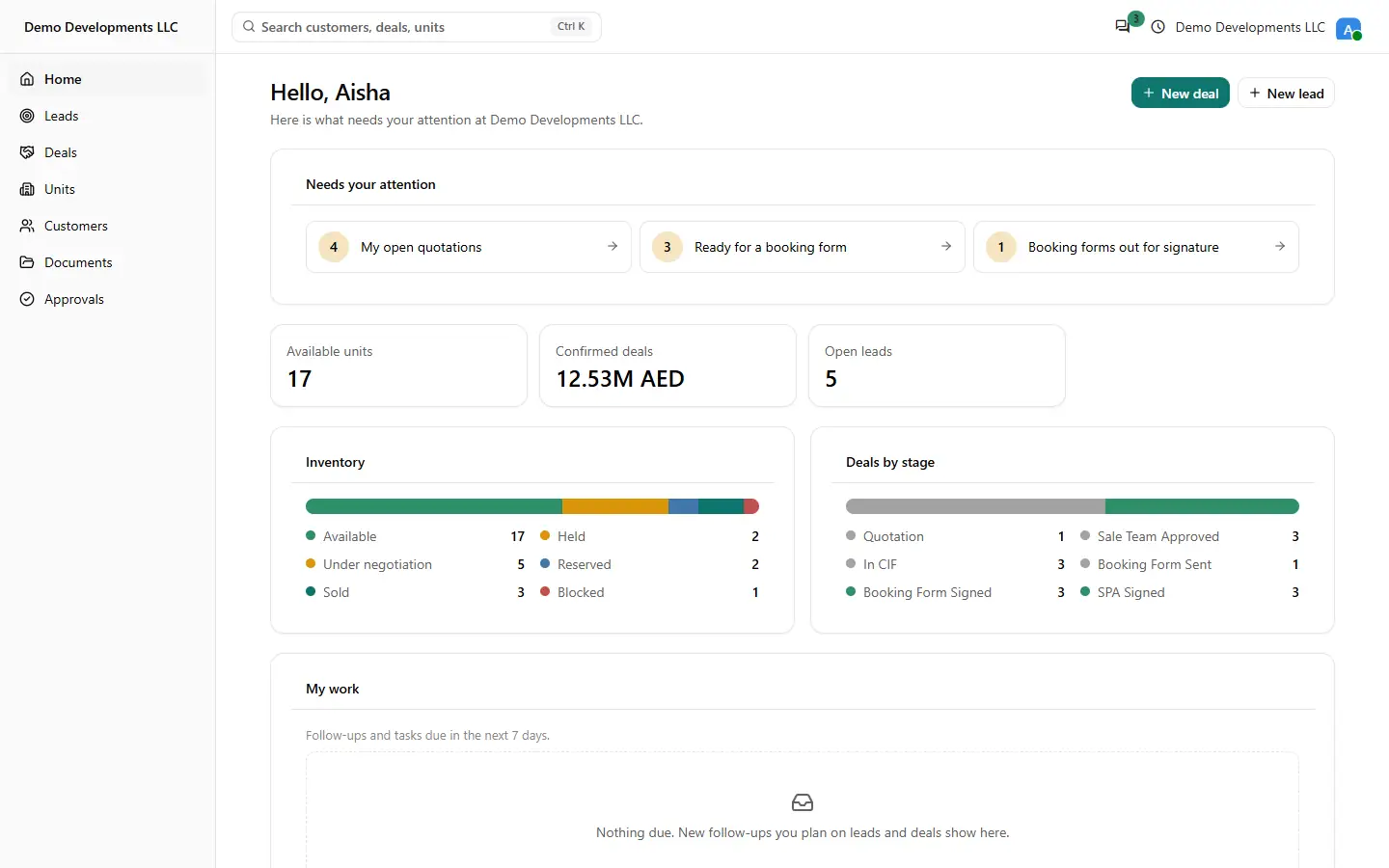
Home shows what waits for her: open quotations, deals ready for a booking form, forms out for signature, then inventory and deals by stage.
SUD ch 6 (leads)
Leads opens as a pipeline by stage.
She adds the walk-in: name, contact details and what the buyer is looking for.
Added, the lead opens on its own page with its stage and the one next step.
She plans the follow-up call: what to do and by when.
Saved, the follow-up is planned on the lead and listed on her home under My work.
SUD ch 9 (inventory, holds)
Units shows the inventory as a board, filtered by project, tower and status.
The unit page shows type, areas, view and price, and the status path from Available to Handed over.
She holds the unit for her customer.
The unit is now Held, with the expiry of the hold.
SUD ch 6, ch 10 step 1
The qualified lead shows its next step: create the quotation.
One click creates the deal with the chosen unit, the payment plan and the source.
The payment plan tab builds the installment schedule: down payment, DLD and admin fees, installments, handover.
SUD ch 10 steps 7-9
From home, "Ready for a booking form" lists her deals that can move on.
The deal page shows where it stands and one highlighted next step.
Create booking form fills the form from the deal: buyers, unit, price and plan.
Send for signature opens the signing step for the buyers and the developer.
SUD 12.2, 12.5, 5.7
From the deal, Upload documents asks for the category and the file.
She picks the category and the file; the type and size are checked against the category.
Uploaded, the file is on the deal and under its customer, unit and project.
Documents for the sales agent: booking forms, SPAs and EOIs, never passports or Emirates IDs.
Every page on this role's menu, with a record where the page lists them.
List and a record
List and a record
List and a record
List and a record
Screen. The same screen as for Tenant administrator, shown here with that role's records.
Screen. The same screen as for Tenant administrator, shown here with that role's records.
Screen. The same screen as for Tenant administrator, shown here with that role's records.
Screen. The same screen as for Tenant administrator, shown here with that role's records.
Screen. The same screen as for Tenant administrator, shown here with that role's records.
Karim Nasser
SUD ch 6 (lead assignment), 5.3 (team access)
Home shows the team leader what waits for the team.
Leads shows the pipeline of his team.
He opens a lead that needs a new owner.
He sets the new owner of the lead.
Every page on this role's menu, with a record where the page lists them.
List and a record. The same screen as for Sales agent, shown here with that role's records.
List and a record. The same screen as for Sales agent, shown here with that role's records.
List and a record. The same screen as for Sales agent, shown here with that role's records.
List and a record. The same screen as for Sales agent, shown here with that role's records.
Screen. The same screen as for Tenant administrator, shown here with that role's records.
Screen. The same screen as for Tenant administrator, shown here with that role's records.
Screen. The same screen as for Tenant administrator, shown here with that role's records.
Screen. The same screen as for Tenant administrator, shown here with that role's records.
Screen. The same screen as for Tenant administrator, shown here with that role's records.
Hana Yousef
SUD ch 10-11 (approvals)
Home shows what waits for the Sales Manager.
Approvals lists what waits for her: what, who asked, and when.
The deal shows the approval banner: who asked, who decides now, and Approve or Refuse.
She approves; the deal moves on to Finance. An agent cannot approve her own quotation.
SUD ch 10 step 8
Booking forms lists every form with its unit, price, plan and signature status.
A form out for signature shows who has signed and who is next.
SUD 5.5, 11.1
Her own hold asks for an extension. She is a Sales Manager, but she asked: she gets Withdraw, not Approve; another Sales Manager decides.
SUD 9.4, 11.2
The agent's hold extension waits in her approvals.
She approves from the list; the hold runs longer.
SUD 11.3, 11.4
A deal that cannot move on names everything missing in its next step.
Bypasses lists the bypasses she asked for, with the gate, the reason and what was missing.
The bypass waits for the GM.
Every page on this role's menu, with a record where the page lists them.
List and a record. The same screen as for Sales agent, shown here with that role's records.
List and a record. The same screen as for Sales agent, shown here with that role's records.
List and a record. The same screen as for Sales agent, shown here with that role's records.
List and a record. The same screen as for Sales agent, shown here with that role's records.
Screen. The same screen as for Tenant administrator, shown here with that role's records.
Screen. The same screen as for Tenant administrator, shown here with that role's records.
Screen. The same screen as for Tenant administrator, shown here with that role's records.
Screen. The same screen as for Tenant administrator, shown here with that role's records.
Screen. The same screen as for Tenant administrator, shown here with that role's records.
List and a record
List and a record
List and a record
List and a record
List and a record
Screen. The same screen as for Tenant administrator, shown here with that role's records.
Screen. The same screen as for Tenant administrator, shown here with that role's records.
Ravi Menon
SUD ch 7 (CIF, KYC)
Home lists the CIFs waiting for review.
CIFs shows each customer information form with its status and deal.
The CIF shows the buyer's details beside the identity documents; the next step lists what is still missing before he can accept.
On the customer page he starts and completes the identity check.
SUD ch 12 (documents), 5.7 (identity data)
Documents holds booking forms, SPAs, passports, Emirates IDs and payment proofs, by deal and customer.
SUD 12.1, 12.2, 12.6
Documents opens on folders per record type: contacts, deals, units, projects, invoices and payments.
A folder lists the files of its records.
Filtered by category: passports, visible to Operations.
A file shows its category, the record it is about, issue and expiry dates, and its versions.
The file's menu has no share link and no lock: documents never open from a public link.
Search finds files by name, customer, deal, category or expiry.
SUD 12.2, 14, 7
The signed booking form of a deal is filed as its final copy, next to the generated one.
The signed copy is marked final: it is never replaced or deleted.
After the CIF is accepted, the passport and Emirates ID are filed on the customer.
SUD 12.2
He uploads a passport scan to the customer; the category allows PDF and pictures only.
The file is refused, with the reason.
SUD 12.3
A generated booking form, about to be replaced by a corrected copy.
Upload new version keeps the old file, archived and read only.
The new version is current; the earlier one stays in the file's history, read only, and can be restored.
SUD 12.4, 12.5, 5.7
Operations sees the identity documents the sales agent does not: passports, Emirates IDs, visas.
Expiring documents lists files about to expire or expired.
The expiry reminders reach Operations as to-dos on the home page.
Every page on this role's menu, with a record where the page lists them.
List and a record. The same screen as for Sales agent, shown here with that role's records.
List and a record. The same screen as for Sales Manager, shown here with that role's records.
List and a record. The same screen as for Sales Manager, shown here with that role's records.
List and a record. The same screen as for Sales Manager, shown here with that role's records.
List and a record. The same screen as for Sales agent, shown here with that role's records.
Screen. The same screen as for Tenant administrator, shown here with that role's records.
Screen. The same screen as for Tenant administrator, shown here with that role's records.
Screen. The same screen as for Tenant administrator, shown here with that role's records.
Screen. The same screen as for Tenant administrator, shown here with that role's records.
Screen. The same screen as for Tenant administrator, shown here with that role's records.
Screen. The same screen as for Tenant administrator, shown here with that role's records.
Lina Saeed
SUD ch 10 step 13, ch 11
Home shows the SPAs waiting for Compliance.
Approvals lists the SPA of the deal, asked by the sales team.
The SPA page shows the parties, unit, price and approvals so far.
She approves; the SPA goes on to Finance, then the GM.
SUD 8.1, 11.2
A submitted broker registration waits for Compliance.
Compliance approves it; the agency can be used on deals.
Every page on this role's menu, with a record where the page lists them.
List and a record. The same screen as for Sales agent, shown here with that role's records.
List and a record. The same screen as for Sales Manager, shown here with that role's records.
List and a record. The same screen as for Sales Manager, shown here with that role's records.
List and a record. The same screen as for Sales agent, shown here with that role's records.
Screen. The same screen as for Tenant administrator, shown here with that role's records.
Screen. The same screen as for Tenant administrator, shown here with that role's records.
Screen. The same screen as for Tenant administrator, shown here with that role's records.
Screen. The same screen as for Tenant administrator, shown here with that role's records.
Screen. The same screen as for Tenant administrator, shown here with that role's records.
Screen. The same screen as for Tenant administrator, shown here with that role's records.
Screen. The same screen as for Tenant administrator, shown here with that role's records.
Joseph Mathew
SUD ch 10 step 12, ch 16
Home shows receipts to confirm and invoices to post.
Invoices lists the three draft invoices of a signed booking: down payment, DLD fee and admin fee.
He selects them and posts them to the books.
The invoices are posted and ready to be sent to the buyer.
SUD ch 16, ch 20
The posted down-payment invoice shows what is still due after the deposit.
Pay proposes the project escrow account and the amount due; the payment proof is attached under Supporting documents.
The collections worklist lists overdue installments with late fees and follow-ups.
Customer 360 shows a buyer's deals, invoices and statement in one place.
SUD ch 11
Approvals lists the SPA after Compliance has approved it.
He approves; the SPA goes on to the GM.
SUD 11.1
A quotation waits for Finance.
Refuse asks for the reason.
Without a reason the refusal is not accepted.
With the reason, the quotation goes back to the agent; the reason is on the deal.
Every page on this role's menu, with a record where the page lists them.
List and a record. The same screen as for Sales agent, shown here with that role's records.
List and a record. The same screen as for Sales agent, shown here with that role's records.
List and a record
Screen
List and a record
List and a record
Screen. The same screen as for Tenant administrator, shown here with that role's records.
Screen. The same screen as for Tenant administrator, shown here with that role's records.
Screen. The same screen as for Tenant administrator, shown here with that role's records.
Screen. The same screen as for Tenant administrator, shown here with that role's records.
Screen. The same screen as for Tenant administrator, shown here with that role's records.
List and a record. The same screen as for Finance, shown here with that role's records.
Screen
List and a record. The same screen as for Finance, shown here with that role's records.
Screen. The same screen as for Finance, shown here with that role's records.
List and a record
List and a record
Screen
Screen
Screen
Screen
List and a record
Screen
Screen
Screen
Screen
Screen
Dialog
Screen
Screen
Dialog
Dialog
Dialog
Dialog
Dialog
Screen
Priya Nair
SUD ch 20 (late fees)
Home shows the requests waiting for the Finance Manager.
Approvals lists the waiver asked by the collector, with the amount and the reason.
The waiver shows the invoice, the late fee and the reason.
She approves; the late fee is reduced on the invoice.
SUD 11.5, 5.6
A Finance step left waiting for days is escalated: the Finance Manager is asked to decide too.
The deal's history records each approval request and decision, with who and when.
A deferral asks Management first, then the Finance Manager.
Every page on this role's menu, with a record where the page lists them.
List and a record. The same screen as for Sales agent, shown here with that role's records.
List and a record. The same screen as for Sales agent, shown here with that role's records.
List and a record. The same screen as for Finance, shown here with that role's records.
Screen. The same screen as for Finance, shown here with that role's records.
List and a record. The same screen as for Finance, shown here with that role's records.
List and a record. The same screen as for Finance, shown here with that role's records.
Screen. The same screen as for Tenant administrator, shown here with that role's records.
Screen. The same screen as for Tenant administrator, shown here with that role's records.
Screen. The same screen as for Tenant administrator, shown here with that role's records.
Screen. The same screen as for Tenant administrator, shown here with that role's records.
Screen. The same screen as for Tenant administrator, shown here with that role's records.
List and a record. The same screen as for Finance, shown here with that role's records.
Screen. The same screen as for Finance, shown here with that role's records.
List and a record. The same screen as for Finance, shown here with that role's records.
Screen. The same screen as for Finance, shown here with that role's records.
List and a record. The same screen as for Finance, shown here with that role's records.
List and a record. The same screen as for Finance, shown here with that role's records.
Screen. The same screen as for Finance, shown here with that role's records.
Screen. The same screen as for Finance, shown here with that role's records.
Screen. The same screen as for Finance, shown here with that role's records.
Screen. The same screen as for Finance, shown here with that role's records.
Screen. The same screen as for Finance, shown here with that role's records.
Dialog. The same screen as for Finance, shown here with that role's records.
Screen. The same screen as for Finance, shown here with that role's records.
Screen. The same screen as for Finance, shown here with that role's records.
Dialog. The same screen as for Finance, shown here with that role's records.
Dialog. The same screen as for Finance, shown here with that role's records.
Dialog. The same screen as for Finance, shown here with that role's records.
Dialog. The same screen as for Finance, shown here with that role's records.
Dialog. The same screen as for Finance, shown here with that role's records.
Screen. The same screen as for Finance, shown here with that role's records.
List and a record
Screen
Screen
List and a record
Dialog
Dialog
Dialog
Dialog
Dialog
Dialog
Dialog
Dialog
Screen
Screen
Screen
Rami Saab
SUD 5.5, 11.1
Rami approved the Sales Manager step of this quotation; the Finance step now waits in his approvals too.
Approve is refused: one person does not approve two steps of the same request.
Tariq Aziz
SUD ch 16 (collections, reminders, late fees)
Home lists the overdue installments waiting for the collector.
Collections lists every overdue installment with the late fee and the follow-up.
The overdue installment shows the amount due, the late fee and its history.
From the worklist he plans the follow-up: the customer's promise to pay, with a date.
Every page on this role's menu, with a record where the page lists them.
List and a record. The same screen as for Sales agent, shown here with that role's records.
Screen. The same screen as for Finance, shown here with that role's records.
Not on this role's menu today.
Not on this role's menu today.
Screen. The same screen as for Tenant administrator, shown here with that role's records.
Screen. The same screen as for Tenant administrator, shown here with that role's records.
Screen. The same screen as for Tenant administrator, shown here with that role's records.
Yara Khoury
SUD ch 10 (handover, title deed)
Home shows the handover team what waits for them.
Units, filtered to sold units, shows what is coming up for handover.
The sold unit shows its status path up to Handed over.
The title deed of the unit: owners, deed number and status, from applied to handed to the owner.
Every page on this role's menu, with a record where the page lists them.
List and a record. The same screen as for Sales agent, shown here with that role's records.
List and a record. The same screen as for Sales agent, shown here with that role's records.
Not on this role's menu today.
Not on this role's menu today.
Screen. The same screen as for Tenant administrator, shown here with that role's records.
Screen. The same screen as for Tenant administrator, shown here with that role's records.
Screen. The same screen as for Tenant administrator, shown here with that role's records.
Khalid Al Rashid
SUD ch 11
Home gives the GM the day's figures: inventory, deals by stage and what waits for him.
Approvals lists what waits for the GM: the SPA and the new price list.
He approves the SPA, the last approval before it can be sent for signature.
He approves the new price list for Tower B; it applies from its start date.
SUD 2.4, ch 21
Units shows the whole inventory by status.
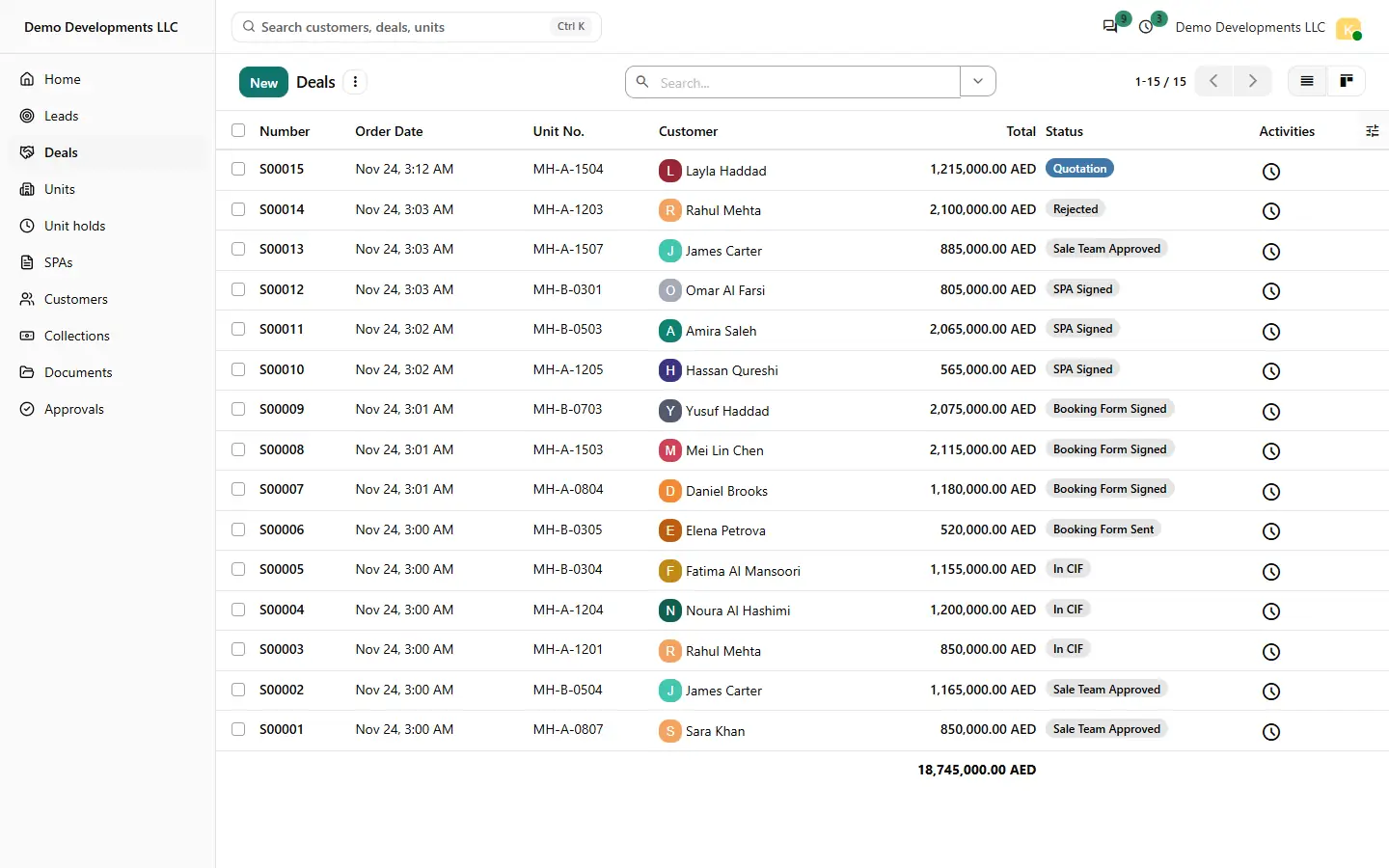
Deals lists every deal with its unit, customer, value and stage.
Collections shows what is overdue across all buyers.
SUD 11.2, 11.4, 16
The GM's approvals: the bypass, the late fee waiver above the Finance Manager's limit, the deferral.
He approves the bypass; the deal can pass that gate, and its history says who asked, who approved and why.
He approves the deferral as Management; it goes on to the Finance Manager.
Every page on this role's menu, with a record where the page lists them.
List and a record. The same screen as for Sales agent, shown here with that role's records.
List and a record. The same screen as for Sales agent, shown here with that role's records.
List and a record. The same screen as for Sales agent, shown here with that role's records.
List and a record. The same screen as for Sales Manager, shown here with that role's records.
List and a record. The same screen as for Sales Manager, shown here with that role's records.
List and a record. The same screen as for Sales agent, shown here with that role's records.
Screen. The same screen as for Finance, shown here with that role's records.
Screen. The same screen as for Tenant administrator, shown here with that role's records.
Screen. The same screen as for Tenant administrator, shown here with that role's records.
Screen. The same screen as for Tenant administrator, shown here with that role's records.
Screen. The same screen as for Tenant administrator, shown here with that role's records.
Screen. The same screen as for Tenant administrator, shown here with that role's records.
Screen. The same screen as for Tenant administrator, shown here with that role's records.
Leila Farouk
SUD ch 7 (Customer 360), ch 20 (statement)
Home shows customer service what waits for them.
Customers finds the buyer by name.
Customer 360 shows the buyer's details, deals and documents in one place.
From Customer 360 she opens the buyer's booking form with the price and the payment plan.
Every page on this role's menu, with a record where the page lists them.
List and a record. The same screen as for Sales agent, shown here with that role's records.
List and a record. The same screen as for Sales agent, shown here with that role's records.
Not on this role's menu today.
Not on this role's menu today.
Screen. The same screen as for Tenant administrator, shown here with that role's records.
Screen. The same screen as for Tenant administrator, shown here with that role's records.
Screen. The same screen as for Tenant administrator, shown here with that role's records.
Sameer Kapoor
SUD ch 15 (finance set-up, escrow)
Home for the finance administrator.
Journals lists the books: invoices, installments, the bank accounts and one escrow journal per project.
The project's escrow journal shows its bank account and where its payments go.
Late payment policies set the grace period and the late fee every overdue installment follows.
Every page on this role's menu, with a record where the page lists them.
List and a record. The same screen as for Finance, shown here with that role's records.
List and a record. The same screen as for Finance, shown here with that role's records.
Screen. The same screen as for Finance, shown here with that role's records.
List and a record. The same screen as for Finance, shown here with that role's records.
Screen. The same screen as for Finance, shown here with that role's records.
List and a record
List and a record. The same screen as for Sales agent, shown here with that role's records.
Screen. The same screen as for Finance, shown here with that role's records.
Screen. The same screen as for Finance, shown here with that role's records.
List and a record. The same screen as for Finance, shown here with that role's records.
List and a record
Screen. The same screen as for Finance, shown here with that role's records.
Dialog. The same screen as for Finance Manager, shown here with that role's records.
Dialog. The same screen as for Finance Manager, shown here with that role's records.
Dialog. The same screen as for Finance Manager, shown here with that role's records.
Dialog. The same screen as for Finance Manager, shown here with that role's records.
Dialog. The same screen as for Finance, shown here with that role's records.
Dialog. The same screen as for Finance, shown here with that role's records.
Dialog. The same screen as for Finance, shown here with that role's records.
Dialog. The same screen as for Finance, shown here with that role's records.
Dialog. The same screen as for Finance Manager, shown here with that role's records.
Dialog. The same screen as for Finance, shown here with that role's records.
Dialog. The same screen as for Finance Manager, shown here with that role's records.
Dialog. The same screen as for Finance Manager, shown here with that role's records.
Dialog. The same screen as for Finance Manager, shown here with that role's records.
Screen. The same screen as for Finance Manager, shown here with that role's records.
Screen. The same screen as for Finance Manager, shown here with that role's records.
List and a record
Screen. The same screen as for Finance Manager, shown here with that role's records.
List and a record
List and a record
List and a record
List and a record
List and a record
Screen
List and a record
List and a record
List and a record
Screen
List and a record
List and a record
Screen. The same screen as for Tenant administrator, shown here with that role's records.
Screen. The same screen as for Tenant administrator, shown here with that role's records.
Screen. The same screen as for Tenant administrator, shown here with that role's records.
Grout staff
SUD 3.7 (staff, two-step sign-in), 3.5
Grout staff sign in with their work e-mail and password.
Every sign-in also asks for the 6-digit code from the staff member's authenticator app.
The dashboard shows what needs attention across all tenants: active, red and amber tenants, open support access and failed set-up tasks.
SUD 3.1, 3.2 (rows 16, 17)
Tenants lists each developer. Each one gets its own database and web address.
The new tenant form: company, address name, country, plan, the first administrator and the brand colours.
The tenant page opens at once with the status Provisioning and its set-up task running.
The set-up task records each step: copy the template, set up company and brand, apply the plan limits, check the address.
Activate sends the first administrator an invitation to set a password.
The new developer appears in the tenants list as Active.
SUD 3.3, 3.4, 3.6 (rows 18, 19, 21)
The tenant page: details, set-up tasks, usage and health, support access, plan and limits.
Plan and limits: assign a plan, or give this tenant its own limits and features.
Support access is named, limited in time and recorded. It can be ended at any moment.
Usage and health reads users, storage and scheduled tasks from the tenant, with amber and red warnings.
SUD 3.3, 3.5, 3.7 (rows 18, 20)
Plans is the catalogue of limits and features Grout sells.
Health lists every tenant, red first, with last activity, last backup and warnings.
Support access lists every open and ended access across tenants.
The audit log records every staff action: who, when, what and on which tenant.
Every page on this role's menu, with a record where the page lists them.
Screen Shown in a journey step.
Screen Shown in a journey step.
Screen Shown in a journey step.
Screen Shown in a journey step.
Screen Shown in a journey step.
Screen
Screen Shown in a journey step.
Screen Shown in a journey step.
Screen Shown in a journey step.
Screen
Screen Shown in a journey step.
Screen
Screen Shown in a journey step.
Screen
Outside the office
What a buyer or a broker opens from a link in an e-mail, on a computer and on a phone.
Customer information form for a person: identity, contact, address, documents and signature.
The buyer confirms the e-mail address with a code sent to it.
Customer information form for a company buyer: company details, signatories and documents.
Expression of interest: the buyer confirms the unit, the deposit and signs.
Signing page: the buyer reads the booking form and signs where marked.
Broker registration: agency details, licences, bank details and documents.
After sending the form, the buyer sees a confirmation.
Current and new
The same system before the redesign and now. Drag across each picture to compare.
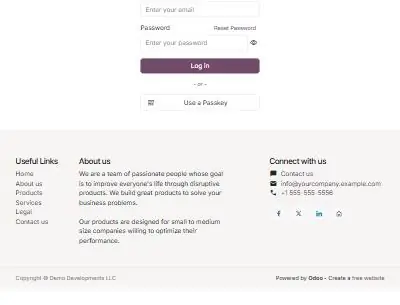
Before: the website page with its menu and footer. Now: the developer's own sign-in card.
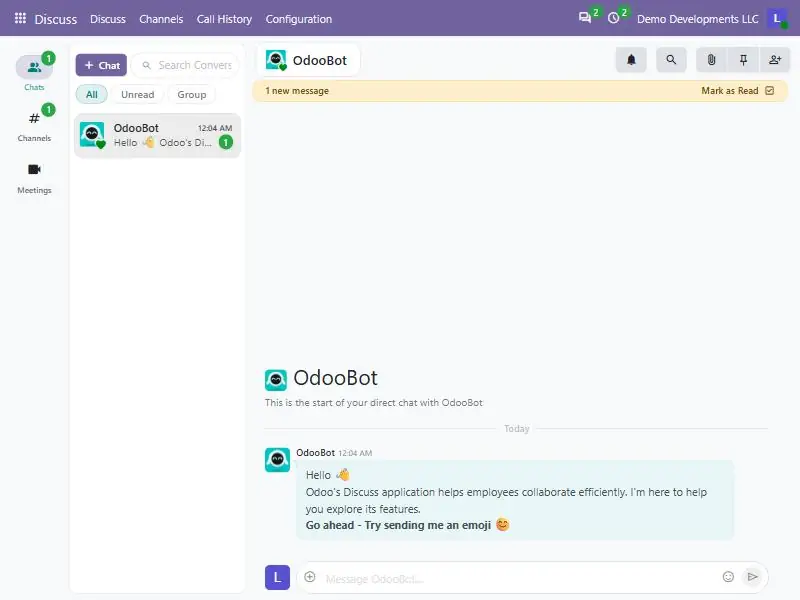
Before: a chat app. Now: a home that lists what waits for the user.
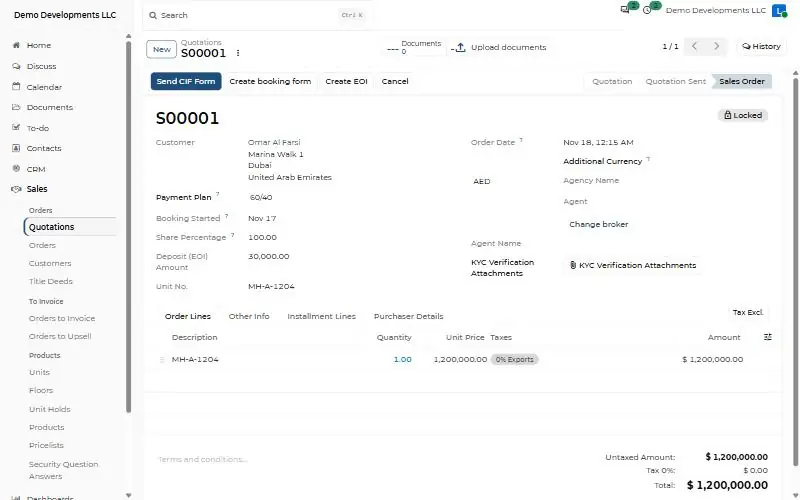
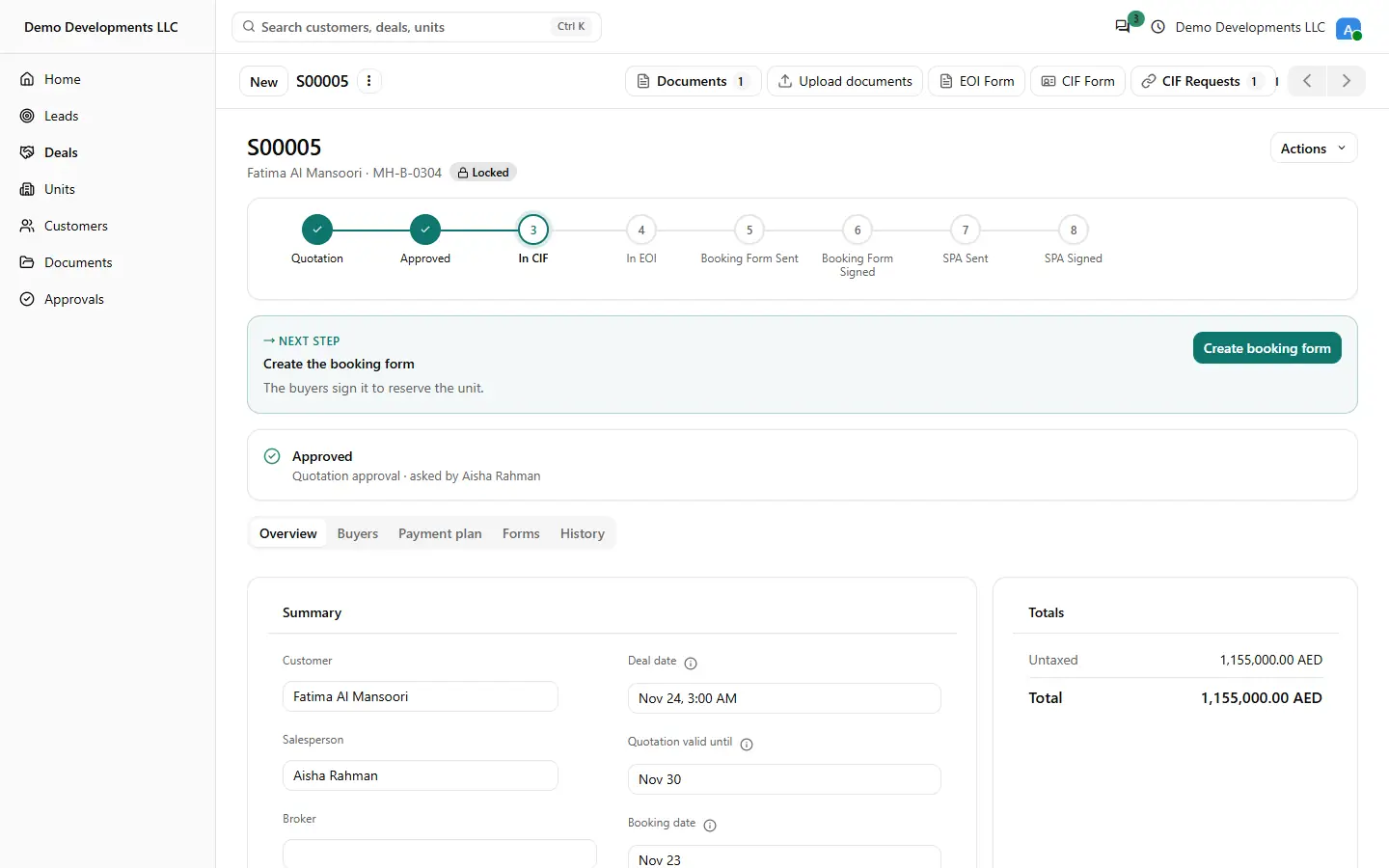
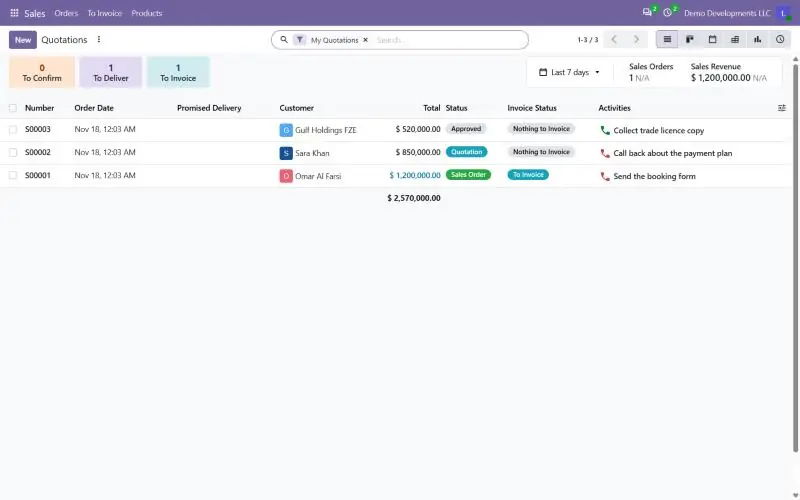
Before: generic quotations in dollars. Now: deals with unit, customer, value in AED and stage.
Before: four buttons of equal weight and technical details. Now: the stage path, one next step and the approval.